
How to check if you have a valid photo in the system
- Open the BC Navigator app
- Tap BC Digital ID
- If your photo is missing (or shows the wrong one), submit a new photo following the steps below.
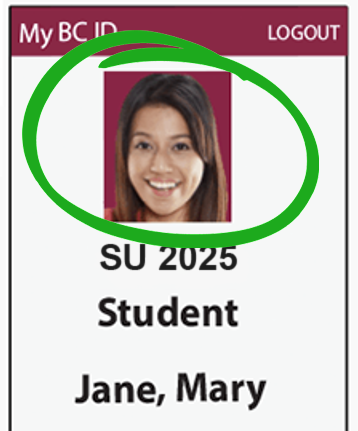
How to add your photo
There are two easy ways to add your photo:
1. Visit the Enrollment Services Center
- Located on the first floor of the West Quad Center
- Open Monday–Thursday, 9 a.m. to 5 p.m.
- Extended hours will be available at the start of the Fall semester to accommodate higher demand.
- Your photo will be taken on-site and added to your Digital ID by the next business day.
2. Submit a photo online
- Email your photo to ID@brooklyn.cuny.edu with:
- Your full name
- Your EMPLID
- Your affiliation (e.g., undergraduate/graduate student, faculty, staff)
- A JPEG/JPG photo that meets the following requirements:
- Taken from the shoulders up
- White or clear background
- No hats or sunglasses (religious clothing exceptions allowed)
Need a Physical ID Instead?
If you do not have a smartphone or prefer a physical card, you can get a physical college ID card at the Enrollment Student Center.
Questions?
If you have any questions, please call the Enrollment Student Center at 718-951-5511 or email idcenter@brooklyn.cuny.edu.