
- Open the Mac Mail app.
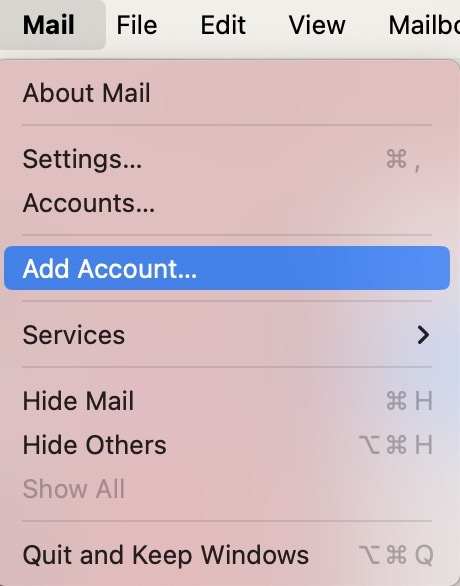
- If this is your first time using the Mail app, you’ll be prompted to add an account, otherwise Select Mail > Add Account from the menu bar:
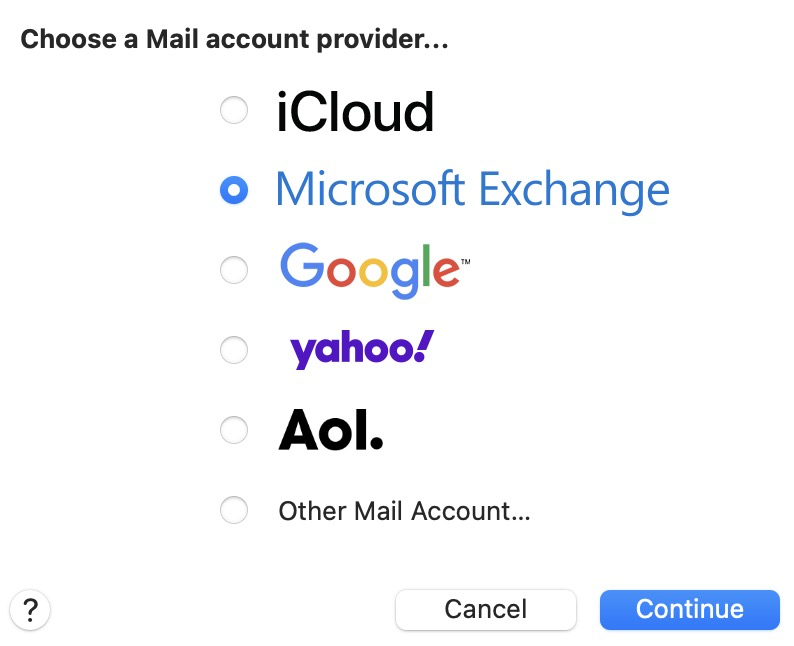
- Select Microsoft Exchange
- Enter your name and CUNY Login ID (firstname.lastname##@login.cuny.edu).
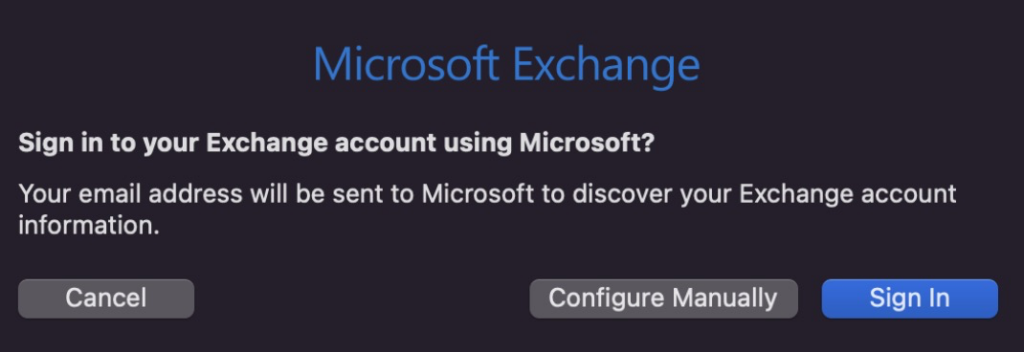
- Click Sign In when prompted
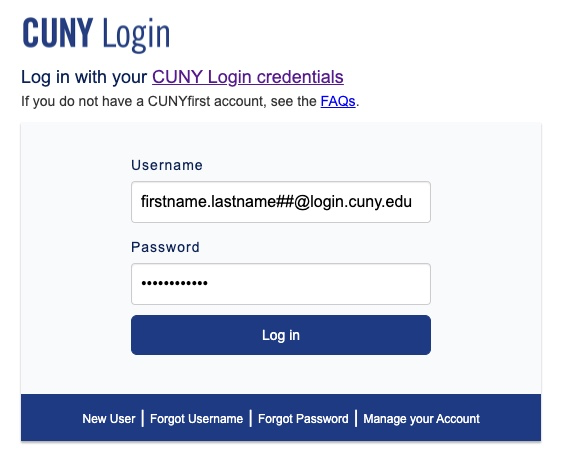
- You will be redirected to the CUNY Login screen. Enter you CUNY Login credentials.
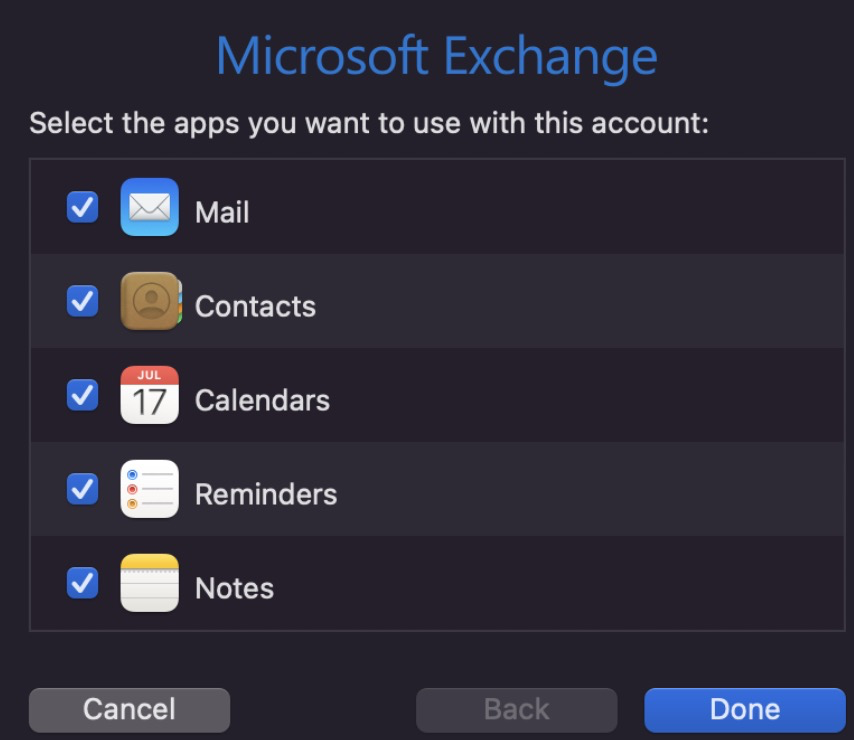
- Select the apps you want to sync to your Mac. In addition to mail, you can sync your calendars, reminders, contacts, and notes. These will appear in the respective local Mac applications.
How to send from one of your other valid CUNY email aliases, instead of your CUNY Login email address (@login.cuny.edu)
- Select Mail in the main menu then Preferences
- Select Exchange > select your CUNY Login email address > then Edit Email Address
- Click the @login.cuny.edu email address and enter your full preferred CUNY email alias: @stu-mail.brooklyn.cuny.edu, @cuny.edu, or one of your active CUNY campus aliases.